 Ahmet Yüceler
Last week I wrote about Outlook going down and how dependent we’ve become on a single company. The question I got most in comments and messages was: "So how did they fix it?"
So I sat down and read Microsoft’s status updates from November 12–14, hour by hour. The picture: even one of the world’s biggest cloud companies worked through the classic recovery playbook step by step during this crisis. Some steps didn’t work, and some made things messier.
ℹ️ A note: Microsoft’s detailed post-incident review (PIR) isn’t public yet. This post is based on Microsoft’s own status updates and its preliminary statement on November 13. My own interpretations are marked separately. Times are in Turkey time (UTC+3).
In Short: Why Did It Crash?
According to Microsoft’s statement on X on November 13, the problem was a technical issue introduced during an earlier network capacity upgrade that surfaced following a recent network change. The company specifically stressed it was not related to a cyberattack or to AI agents.
The symptoms came as a chain:
- A large number of servers became unexpectedly unavailable. Per Microsoft, traffic hadn’t increased; the load landed on the remaining servers.
- The process that establishes secure connections on those servers became overwhelmed, and they stopped processing requests.
- Processor usage rose, and servers started failing automated health checks.
My interpretation: It looks like a problem left over from the upgrade sat unnoticed for a while, and the new network change made it visible. Setting up secure connections (TLS handshakes) is one of the most CPU-heavy things a server does. When connections couldn’t be established, clients retried again and again, which may have multiplied the load. We’ll only see the exact chain in the PIR.
Hour by Hour: What Happened in the War Room?
Based on Microsoft’s updates as compiled by StatusStack and a write-up on DEV Community, the recovery went roughly through six phases.
1. Shift Traffic, Restart Servers (Nov 12, 19:17–22:00)
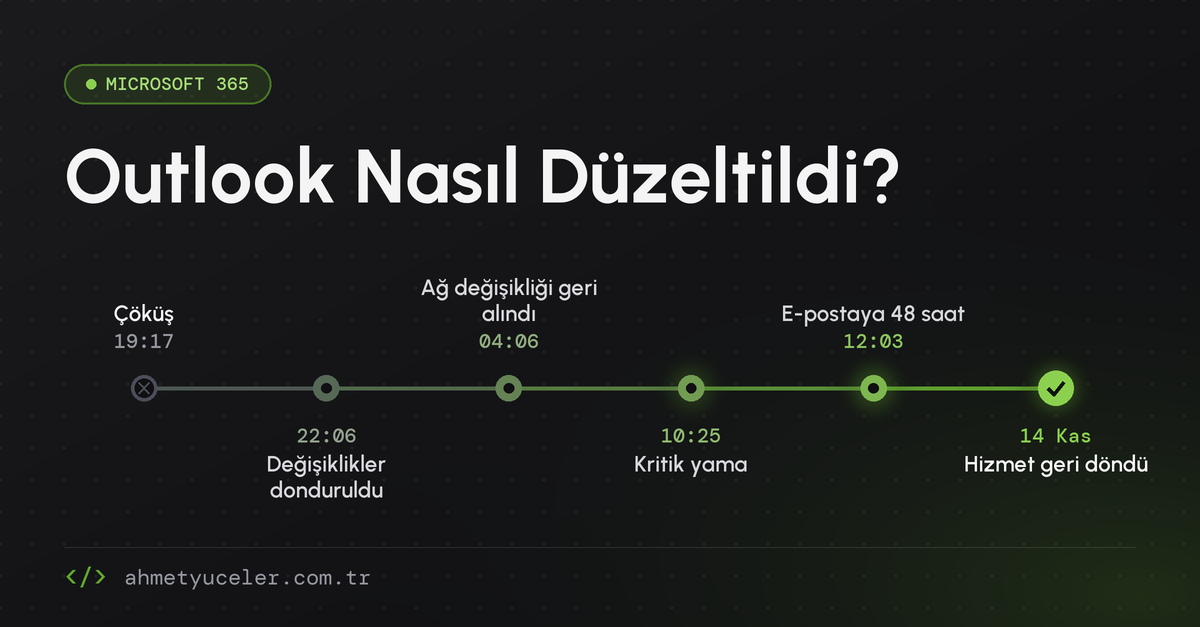
The problem started in Exchange Online at 19:17 and by 21:26 had become a broader Microsoft 365 incident covering Teams, SharePoint, Copilot and Defender XDR. The first reflex was the classic one: part of US traffic was moved away from the affected infrastructure, connection traffic was redistributed worldwide, and affected servers were restarted.
2. Freeze Everything (22:06)
This was one of Microsoft’s best moves, in my view: "As a precaution, we’ve paused all deployments and configuration changes." Not risking new changes while the fire is burning is the first rule of a major incident (a change freeze).
3. Bypass the Health Check (22:43–23:56)
Servers failing health checks were being pulled from the pool, pushing the load onto even fewer machines. Microsoft first tried a targeted change to bypass the component processing health checks, then brought a subset of servers back with an alternative health-check method. An interesting detail: at this point they were saying they hadn’t found any recent change that correlated with the start of impact.
4. Isolate, Drip Traffic Back (Nov 13, 01:00–02:59)
When the expected relief didn’t come, the strategy changed. Part of the infrastructure was isolated, components were restarted, and traffic was reintroduced gradually. Some traffic types were limited in certain regions, and a subset of servers was rebuilt on a previous software configuration. Because by now it was clear: recovered servers could become unresponsive again once traffic hit them.
5. Revert the Network Change, Ship the Patch (04:06–11:06)
At 04:06 Microsoft began reverting a recent network configuration change that correlated with the start of impact. But reverting wasn’t easy either: according to the reported updates, machines stuck in a bad state were blocking the network change from syncing. The "medicine" also had to reach the patient.
Throttling, protocol changes and failover routing were applied to frontend servers. At 09:54 Microsoft described progress as "marginal success" while adding capacity with virtual machines. The real turning point came at 10:25: after a patch to an upstream authentication and routing configuration component, server stability improved. From 11:06 the patch rolled out to regions entering business hours first.
6. Save the Email, Drain the Queues (12:03–Nov 14)
At 12:03 Microsoft extended the email timeout window to 48 hours. Recovery came region by region: Asia Pacific first (14:01), then Europe (15:00), then North America (16:00). By 17:01 email queues were approaching normal levels. Microsoft didn’t close the incident until the backlog had cleared; according to Digital Trends, the outage lasted well over 24 hours, and the incident records closed on November 14 with "service restored."
Why Did It Take So Long?
People asking "it was a network change, why not just revert it?" have a fair point. The updates point to four reasons:
- The cause wasn’t obvious: In the first hours, Microsoft said it hadn’t found a change correlating with the start of impact. The suspect change only started being reverted about 9 hours in.
- Thundering herd: Every server that came back up was hit at once by millions of waiting clients and knocked over again. That’s why "turn it off and on" wasn’t enough.
- A chicken-and-egg problem: The machines that had to carry the fix were themselves broken; stuck machines blocked the network change from propagating.
- Scale: Pushing the fix everywhere at once would have meant new risk. So the patch rolled out region by region, following business hours.
Were Emails Lost?
Mostly no. Email is a queued system by nature: when the other side is unreachable, the sending server holds the message and retries for a period of time. Microsoft also extended the timeout window to 48 hours so messages sent during the outage wouldn’t be lost, and kept monitoring until the queues drained. So most emails weren’t lost, just late.
What Will You Do If Outlook Goes Down?
We can’t fix Microsoft’s servers. But whether our work grinds to a halt when Outlook and Teams go down together is largely up to us. During this outage, one company in Taiwan had to confirm trades by fax, and many teams spent hours trying to figure out whether the problem was on their side or Microsoft’s.
Here’s a practical plan B, both for the moment of an outage and for being ready next time:
During the Outage: The First 30 Minutes
- First, confirm the problem isn’t on your side. Check the Microsoft 365 status page (
status.cloud.microsoft), the Microsoft 365 Status account on X (@MSFT365Status) and, if you’re an admin, the service health view in the admin center. That way you won’t waste hours on things that won’t help, like resetting passwords or deleting Outlook profiles. - Open your backup communication channel. Your team should have a backup channel agreed in advance: Slack, Google Meet, a WhatsApp or Telegram group, or a phone tree as a last resort. Move your Teams meetings there too.
- Send your customers a short notice. A banner on your website and a one-line social post are enough: "Your emails may reach us late; for urgent matters, call us at this number." If you stay silent, customers will assume you’re ignoring them.
- Don’t resend emails over and over. The messages you sent are most likely waiting in a queue. Resending means the other side gets the same email three times once the outage ends. Send anything urgent through the backup channel.
- Work from the copies on your computer. If Cached Exchange Mode is on in the Outlook desktop app, you can read emails that already downloaded while offline. Files kept on your device in OneDrive also open without an internet connection.
- Run email-dependent critical work by hand. Temporarily track processes that run over email, such as order confirmations, invoices and support requests, by phone, in a shared spreadsheet or through the backup channel. Enter them into your systems once the outage ends.
Getting Ready for Next Time
- Write down your backup communication plan. Who decides, who notifies customers, which channel do you use? Keep this plan outside email, somewhere everyone can reach. A 15-minute drill once a year is enough.
- Get critical information out of the inbox. If customer contacts, phone lists and contracts live only in someone’s inbox, they’re all locked during an outage. Use a CRM, a shared document or an offline copy.
- Turn on offline access in advance. Set up cached mode in Outlook and "Always keep on this device" for critical folders in OneDrive now. Trying to do it during an outage is too late.
- Consider a separate address for emergencies. As long as your domain’s email is hosted at Microsoft, every address on that domain goes down with it. An emergency address on a separate domain at a different provider gives your key customers an escape route.
- Send outage notifications outside Microsoft. If you’re an admin, set service health email notifications to also reach an address outside Microsoft. Otherwise the "email is down" alert lands in the email that’s down.
- Design your product to work without email. If you’re a developer: when a send fails, queue the message and tell the user it may be delayed. Keep a second channel (SMS, in-app notification) or a backup email provider ready for critical notifications like password resets.
In short: you can’t prevent Microsoft’s outage, but you can prevent your own.
I’ll update this post when Microsoft publishes its detailed post-incident review (PIR).
Leave a comment
Your email address will not be published. Required fields are marked *